Starting your Market Making Bot
To starting a market making bot, you will first need to create an OctoBot Market Making account.
Once authenticated to your account, the first step is to select your exchange.
1. Configuring your exchange
From the Settings page, select the exchange you wish to improve your liquidity on.
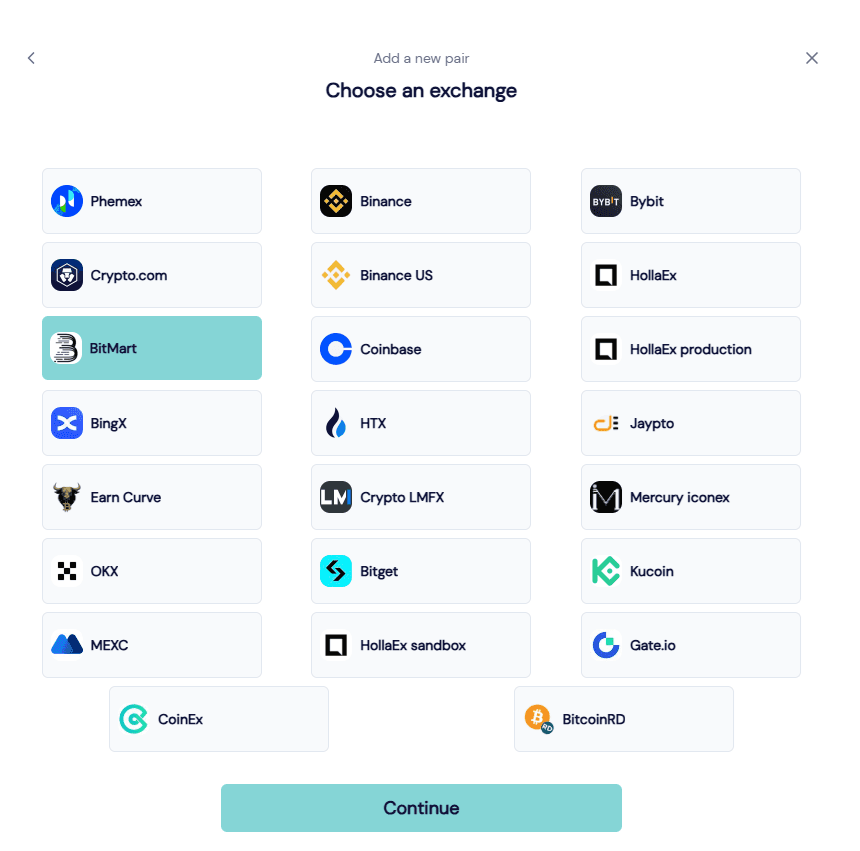
2. Entering your exchange API Keys
Next step is to enter the API Key details of the exchange account which is holding your market making funds. This is necessary for OctoBot Market Making to be able to trade on your account.
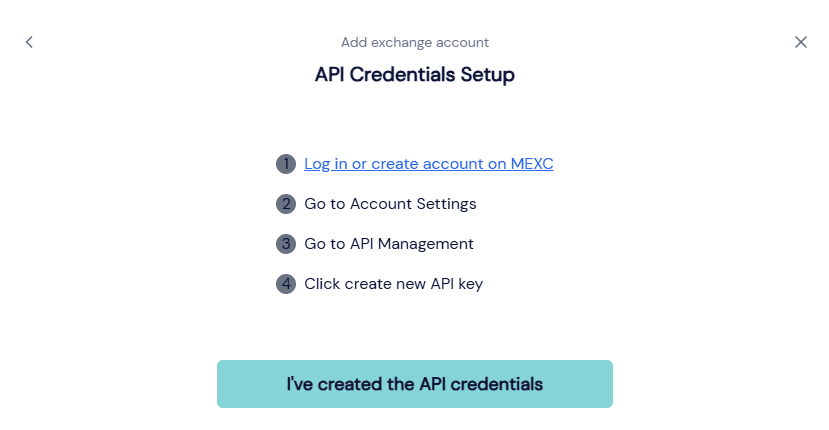
Please note that Reading and Trading permissions are required to use OctoBot Market Making. Never add other permissions such as transfers or withdrawals.
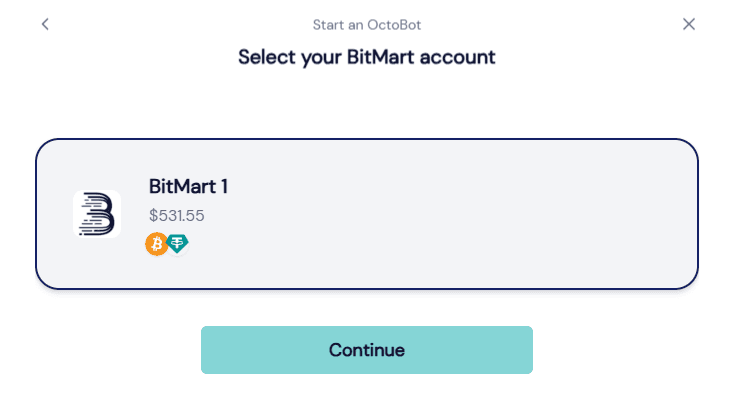
Your valid credentials will be available to your market making bots.
3. Configure your bot
A. Create a new bot
Once your exchange credentials are valid, proceed to the bots dashboard and start a new bot.
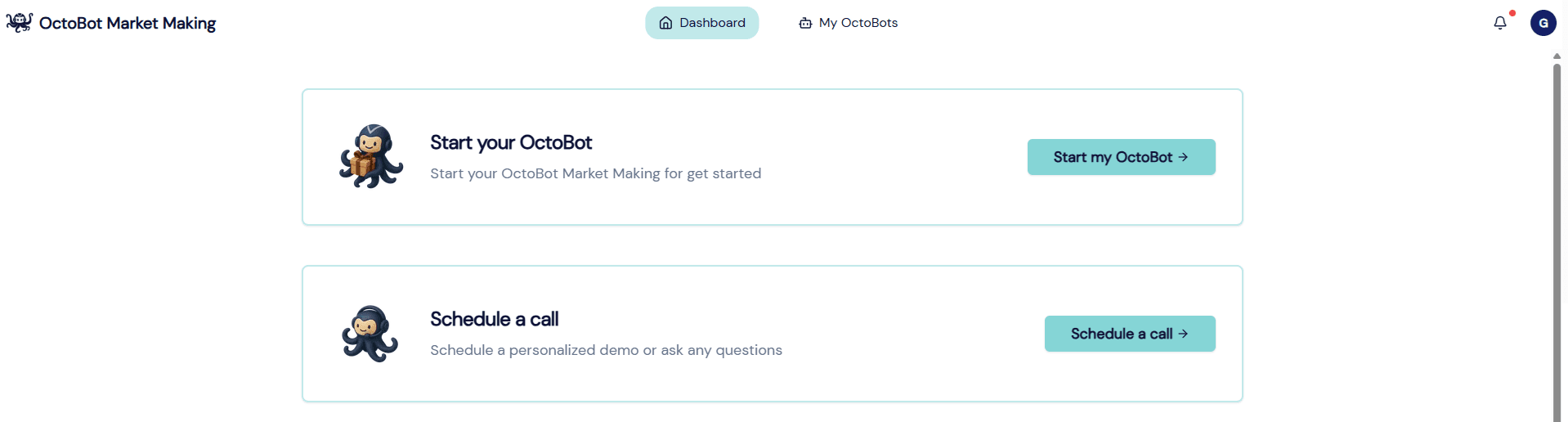
You can’t start a new bot? This means that your account is not yet active. Contact the team or
book a call
to get your account ready.
B. Select your exchange
Select the exchange you wish to run your bot on and select your previously entered credentials and confirm.
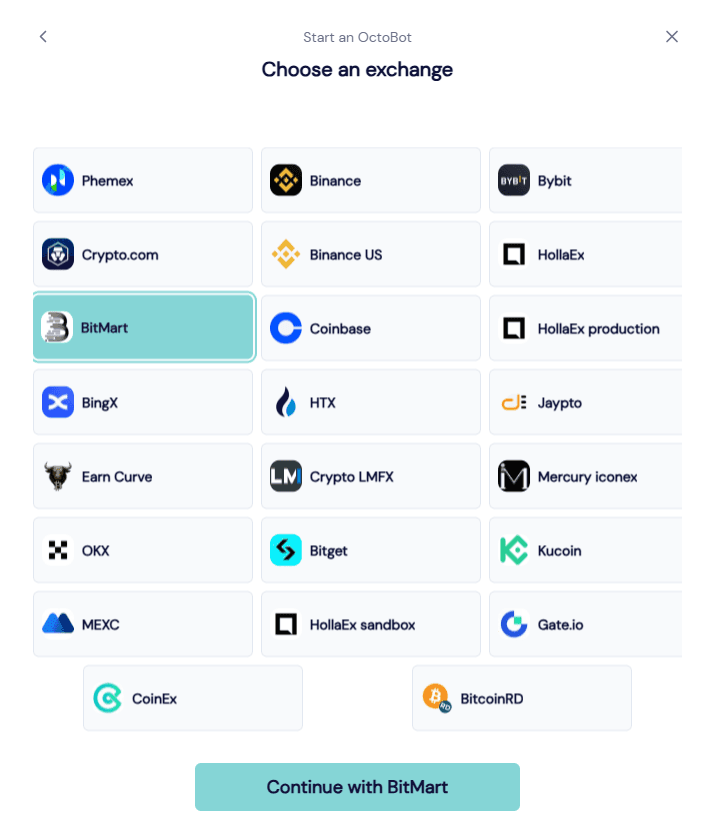
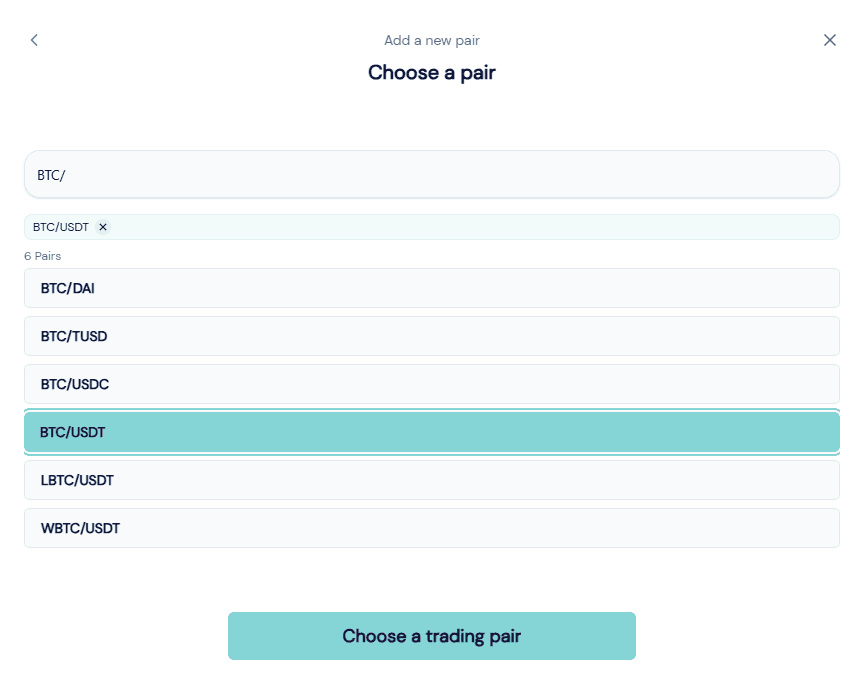
C. Select your market
Select the trading pair(s) you wish to improve liquidity on and confirm. You can type in the symbol of your coin to quickly find it.
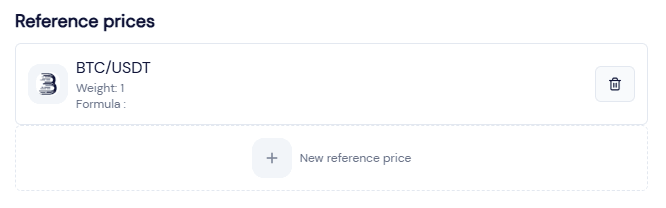
D. Configure the reference price
Configure the reference price of each pair. The reference price configuration is the way OctoBot Market Making will compute the price it will use as a basis to create its order book from.
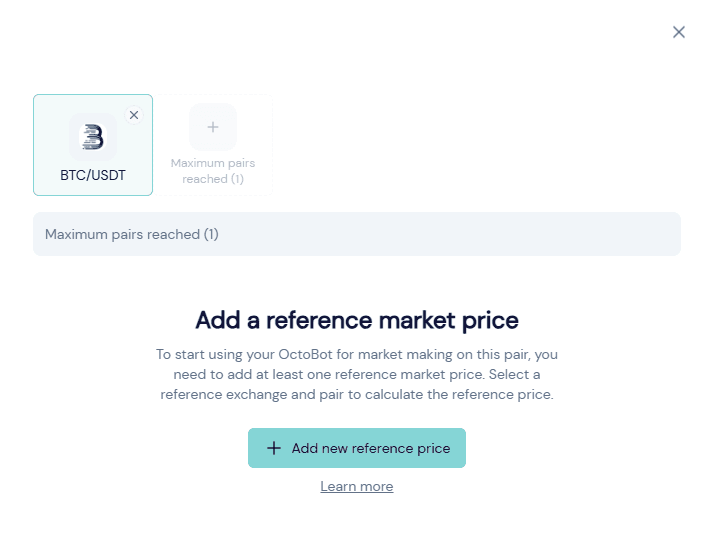
There are different ways you can configure a market making reference price:
- Using the same exchange as the exchange you wish to improve liquidity on: In this mode, the market making strategy will use the local exchange current price to create its order book. This option is a good choice if your target exchange is among the best exchanges to find the right price of your trading pair
- Using a different exchange: In this mode, the strategy will create its order book based on another exchange price. This is useful if another exchange usually has a more up-to-date price than your target exchange. When providing liquidity on a liquidity exchange for a trading pair that has equivalents on a more liquid exchange, this mode is the best choice
- Using multiple exchanges: This mode enables you to compute a market making target price based on weighted average prices from multiple exchanges. This is especially useful when no exchange has a significantly better liquidity than others and no obvious choice is available.
- Using dynamic pricing with a formula: This enables you to use a formula to compute the price dynamically or force a static price. This is useful if you wish to lock your market price at a pre-configured value or use a formula to compute the price from an average value, or enforce support levels or resistance levels.
More details about the different ways to configure a market making reference price can be found in the Using formulas to configure your market making reference price guide.
E. Configure your strategy
OctoBot Market Making enables you to configure your market making strategy over many different parameters.
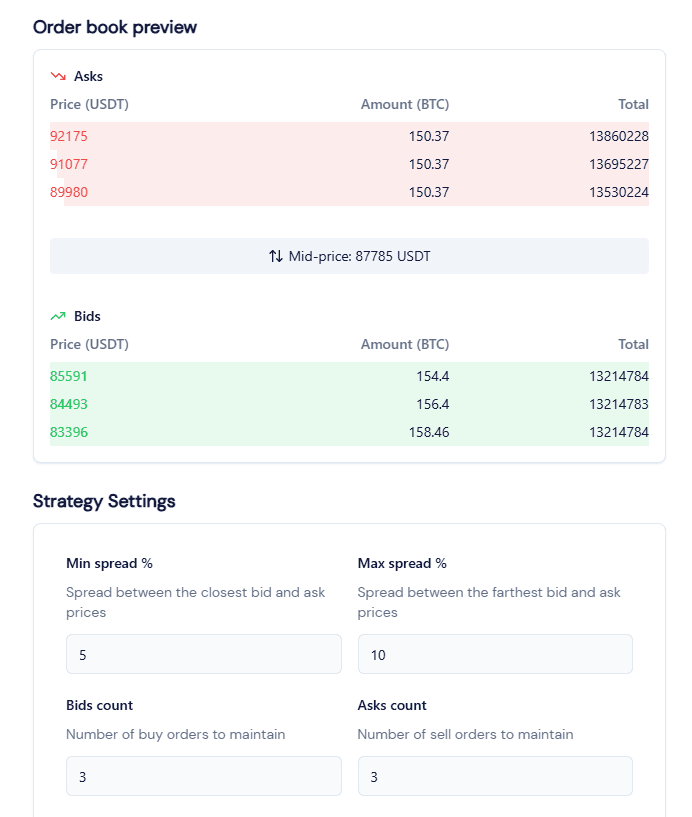
Base parameters such as min and max spread, and order counts are the top level parameters and should always be considered by every market making strategy.
Note: everytime a parameter changes, the order book preview of your configuration will automatically be updated to reflect your changes.
Many other parameters can be configured to fine-tune the many aspects of a market making strategy including orders distribution, market making budgets, stop conditions, and more.
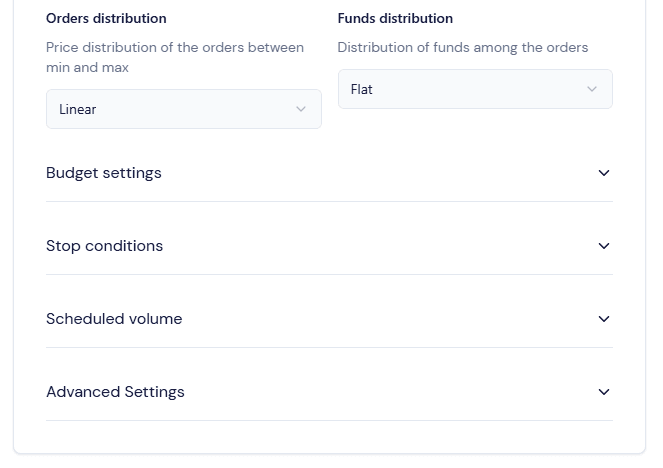
- It is recommended to take the time to configure stop conditions in order to protect your funds from market manipulations, high volatility and unexpected situations.
Once satisfied with your configuration, click Save and continue to start your bot.
F. Name your bot
You can now give a name to your bot while it starts.
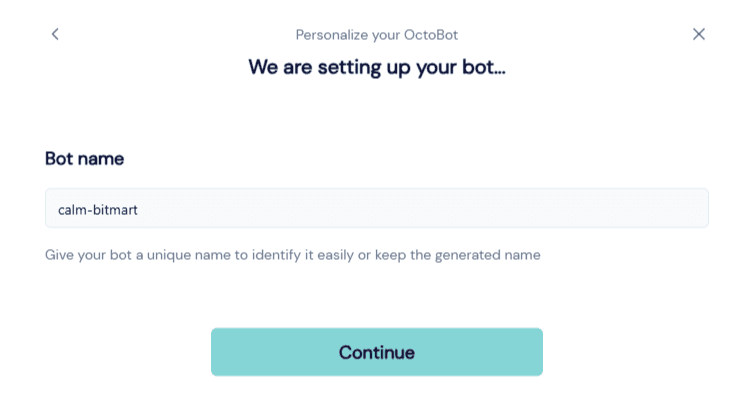
Once started, your bot will be displayed on your bots dashboard.
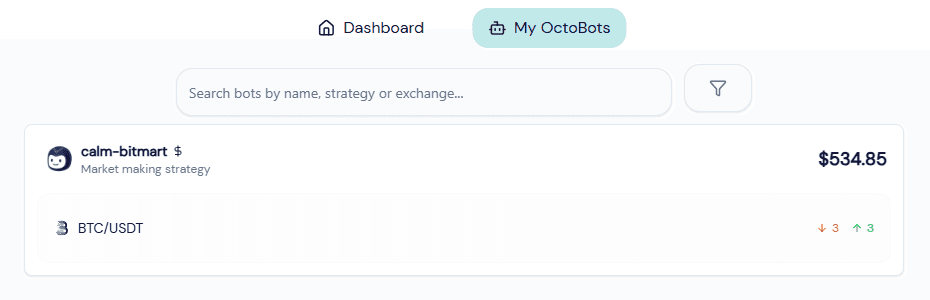
You can now edit its configuration at any time or stop it at will. In case a stop condition is triggered, your bot will automatically stop itself, cancel its open orders and send you a notification detailing why it stopped and which condition was met.